
With dozens of video editing tools available, choosing the right one can feel overwhelming. In this guide, we compare the leading video editing apps in 2026, outlining who each tool is built for and how to select the best option for your projects and team.
Best Video Editing Apps: Key Findings
- Professional editors still rely on tools like Adobe Premiere Pro and DaVinci Resolve, while teams increasingly adopt simpler platforms aligned with specific production needs.
- Platforms like Descript shift video creation away from traditional timelines by allowing teams to edit video through text, significantly reducing production friction.
- Platforms like Canva Video Editor, Filmora, and PowerDirector enable consistent production without requiring specialized editing expertise.
How To Choose the Best Video Editing App?
When comparing video editing apps, users consistently focus on workflow fit rather than feature lists.
Based on expert reviews and real editor discussions, these factors matter most:
- Define your main use case: Social media videos, marketing content, tutorials, and cinematic production require different tools.
- Match the learning curve to your team’s skill level: The best editor is the one you and your team can use efficiently, not the one with the most features.
- Prioritize time-saving workflows: AI tools, templates, captions, and presets help reduce manual work, with generative AI improving content productivity by up to 40%
- Check collaboration capabilities: Teams benefit from shared projects, feedback tools, and brand asset management.
- Make sure performance fits your hardware: Smooth playback and reliable exports matter more than advanced features you rarely use.
- Consider ecosystem and integrations: Choose software that works well with your existing design, audio, or marketing tools.
- Evaluate long-term value: Compare subscriptions, one-time licenses, and feature limitations before committing.
1. Descript: Best for All-in-One Video and Podcast Editing
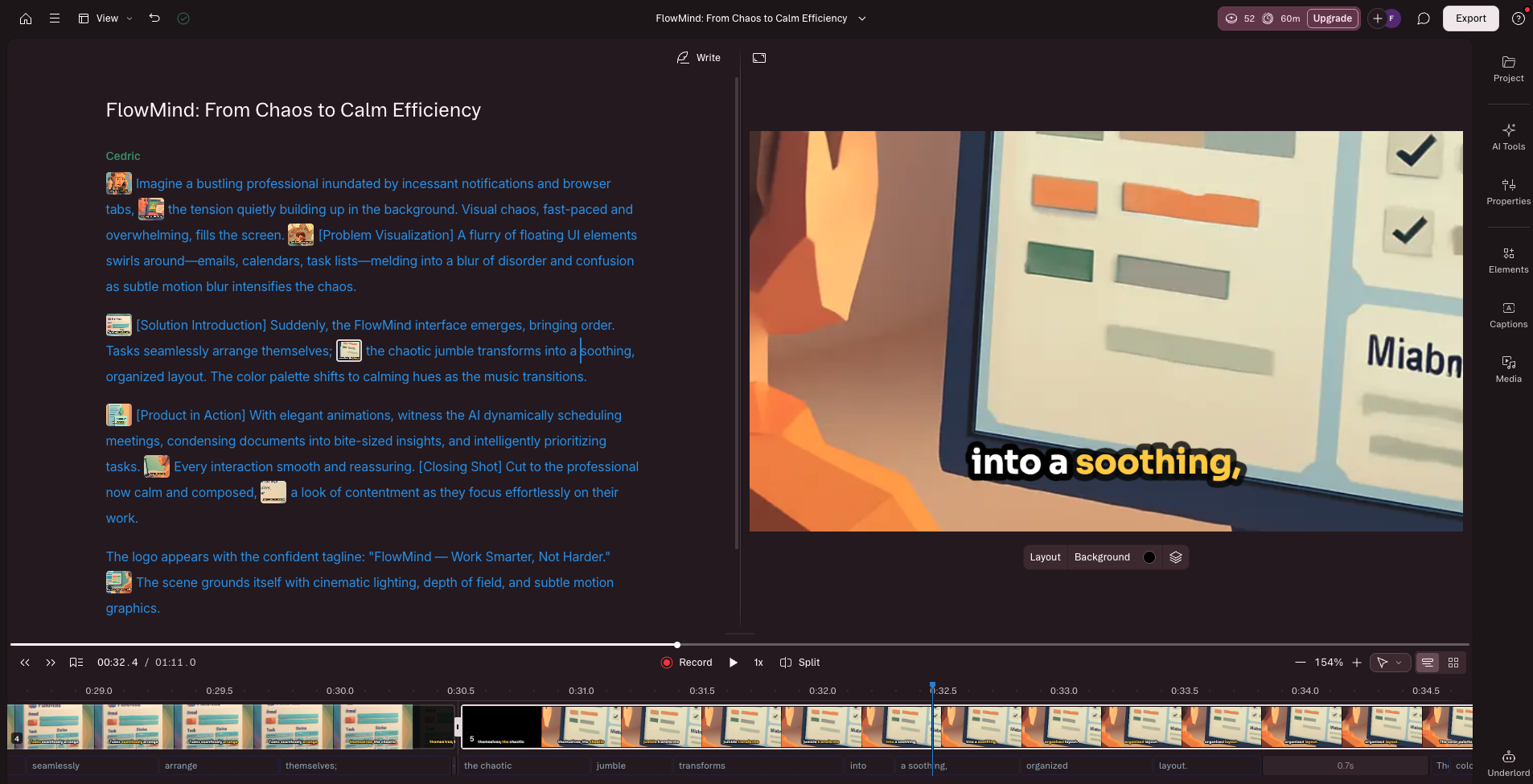
Descript is an all-in-one video and podcast editor built for marketing and content teams. The platform focuses on simplicity and speed by replacing complex timelines with a familiar workflow.
Descript lets you edit video the same way you would edit a Google Doc, turning video production into a writing and editing process instead of a technical task.
From recording to publishing in one workflow, teams can create polished content without juggling multiple tools or relying on specialized editing skills.
Key Features
- Edit video by editing text through transcription-based editing
- Built-in screen recording and webcam capture
- AI cleanup tools including filler word removal and Studio Sound
- Overdub voice correction for fixing narration without re-recording
- Automatic captions and short-form clip creation
- Shareable drafts and collaborative review workflows.
Pricing
- Plans starting at $16/month for the annual billed monthly plan.
Pros
- Edit video like a document
- True all-in-one video and podcast editor
- Ideal for demos, explainers, and educational content
- Built for collaboration and fast iteration
- AI tools reduce editing and cleanup time
- Faster turnaround from recording to publishing
Cons
- Not intended for cinematic or advanced visual effects editing
- Precise cuts and detailed timeline work restrictive
- Occasional AI mistakes
Get started with Descript for free.
2. Adobe Premier Pro: Best for Cross-App Creative Workflows
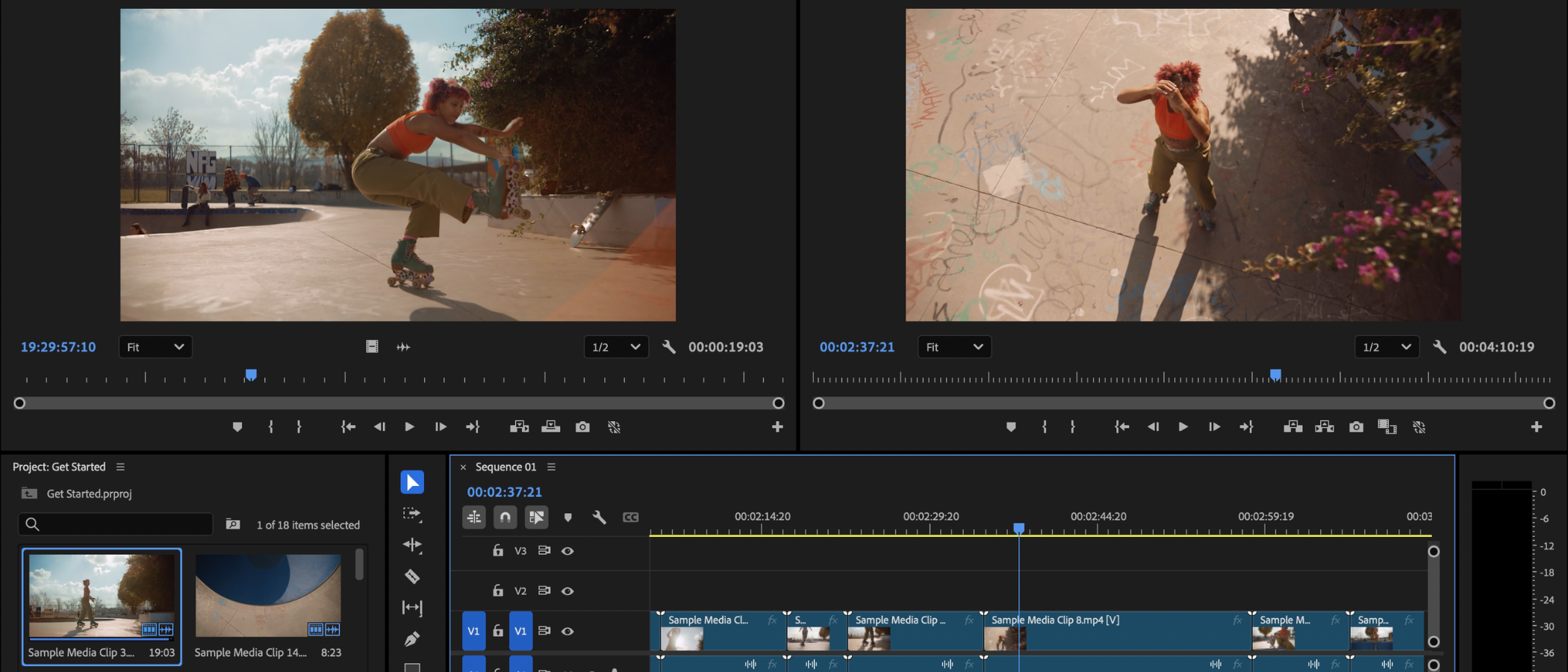
Adobe Premiere Pro is the industry-standard video editing software used by filmmakers, agencies, YouTubers, and production studios worldwide.
It gives you room to grow from simple cuts to complex productions without forcing you to change tools later.
Teams like it because it adapts to how they work, handles almost any format you throw at it, and connects smoothly with other Adobe apps when projects get more demanding.
Key Features
- Professional non-linear timeline editing
- Advanced color correction and audio mixing
- AI tools like Generative Extend and visual clip search
- Automatic captioning and translation for over 27 languages
- Multi-camera editing and motion graphics workflows
- Seamless integration with After Effects, Photoshop, and Audition
- Cloud collaboration via Frame.io and Creative Cloud storage
Pricing
- Plans starting at $22.99/month for the annual billed monthly plan.
Pros
- Industry standard used in professional production
- Extremely flexible and customizable workflow
- Powerful AI editing features improving speed and automation
- Strong ecosystem with other Adobe Creative Cloud apps
- Regular updates included in subscription
Cons
- Subscription-only pricing model
- Steep learning curve for beginners
- Requires a powerful computer for smooth performance
- Can feel complex for simple social media editing
Start a 7-day free trial of Premiere.
3. DaVinci Resolve: Best for Color Grading and All-in-One Post-Production
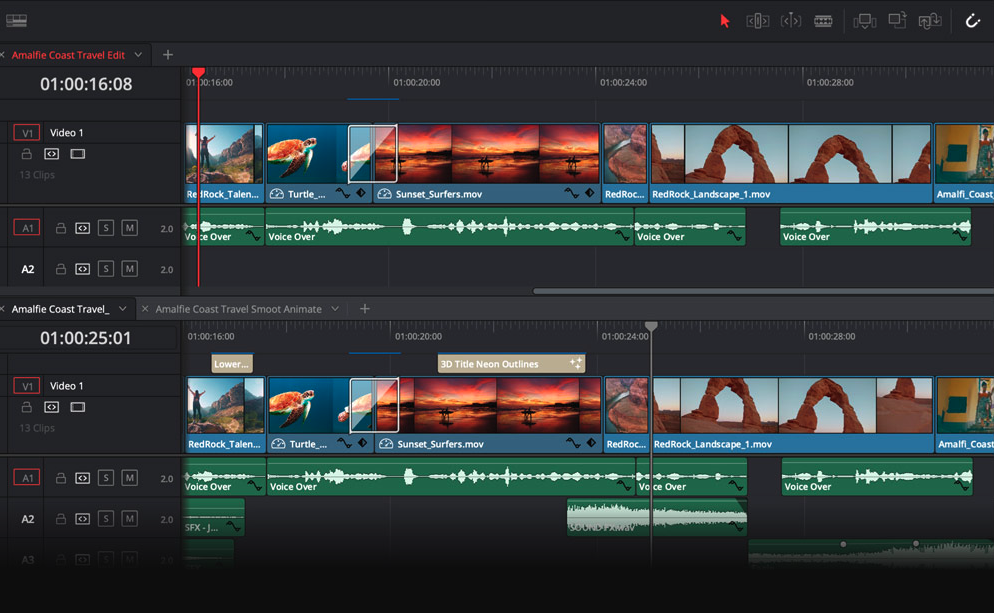
DaVinci Resolve is the rare video editor that combines professional editing, Hollywood-level color grading, visual effects, and audio post-production into a single application. On top of that, it offers most of it for free.
Resolve removes the need to jump between multiple programs, making it especially powerful for production teams who want a complete post-production workflow in one place.
Key Features
- Industry-leading color grading tools
- Built-in VFX and motion graphics through Fusion
- Advanced audio production suite through Fairlight
- Dual timeline editing workflow
- AI-assisted tools and HDR grading support
- Multi-user collaboration capabilities
Pricing
- DaVinci Resolve 20: Free
- DaVinci Resolve Studio 20: Starting from $295
Pros
- Powerful free professional editor
- Best-in-class color correction used in film and TV
- No subscription required
- Complete post-production workflow in one app
- Stable performance praised by editors switching from other tools
Cons
- Steeper learning curve for beginners
- Requires strong GPU performance for smooth editing
- Interface can feel complex because multiple professional tools are combined
- Overkill for quick social media edits
Download DaVinci Resolve for free.
4. Final Cut Pro: Best for High-Volume Video Production on Mac
Final Cut Pro stands apart because it approaches editing differently from traditional video software.
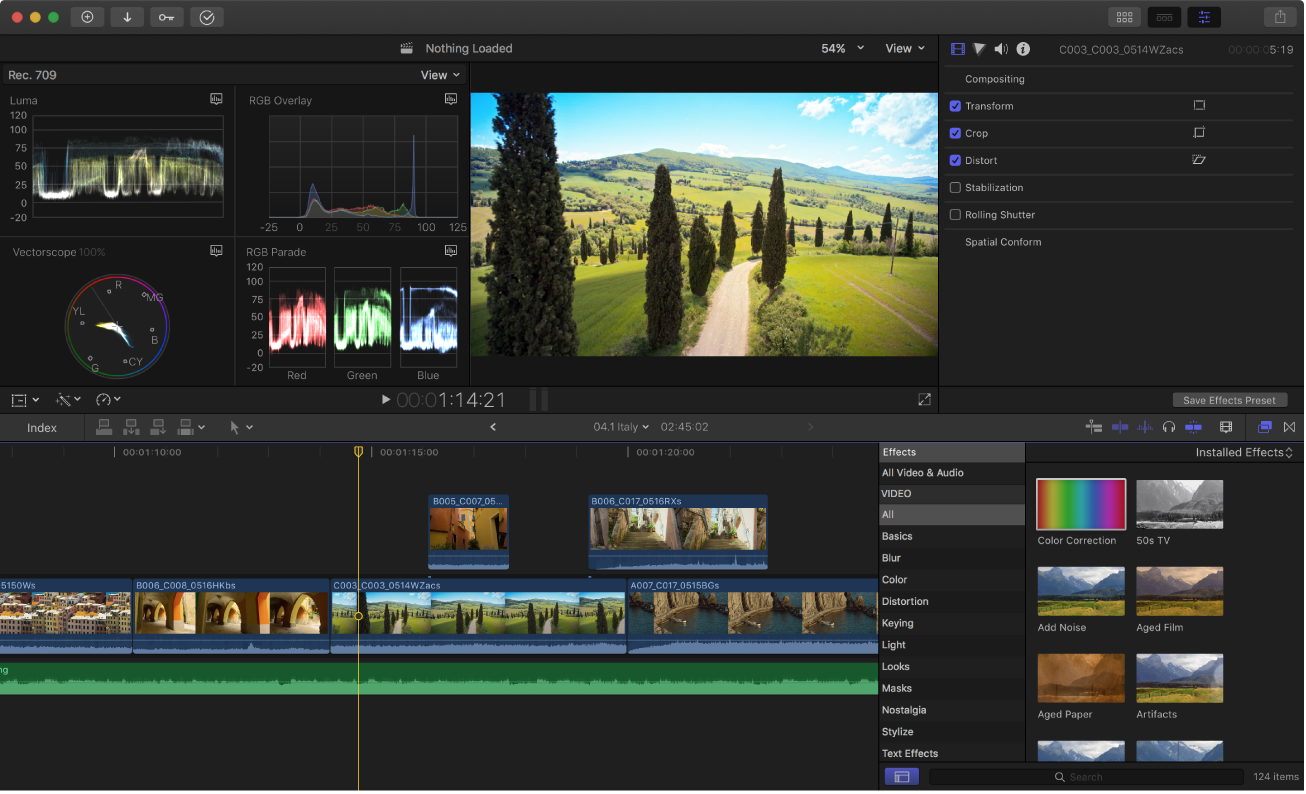
Instead of managing dozens of tracks like traditional video software, its Magnetic Timeline automatically keeps clips organized as you work, so you spend less time fixing the timeline and more time actually editing.
Because Apple built it specifically for Mac hardware, playback stays smooth and exports finish quickly, which makes Final Cut Pro a popular choice for teams producing video regularly and trying to keep projects moving.
Apple has also introduced Apple Creator Studio, a new subscription bundle that includes Final Cut Pro alongside other professional creative tools such as Logic Pro, Motion, Compressor, Pixelmator Pro, and MainStage.
The bundle also adds premium templates and content across Apple productivity apps like Keynote, Pages, Numbers, and Freeform.
Key Features
- Native optimization for Apple Silicon performance
- Advanced color grading and stabilization tools
- Multicam editing for syncing multiple camera angles
- Automatic transcription and caption generation
- High-speed rendering and background exporting
- Integrated motion graphics and plugin ecosystem
Pricing
Final Cut Pro remains available as a one-time purchase for $299.99 on the Mac App Store, which includes ongoing updates.
Apple also offers access through the Apple Creator Studio subscription, which bundles Final Cut Pro with other Apple professional creative tools.
- $12.99 per month or $129 per year (after a one-month free trial)
- $2.99 per month or $29.99 per year for students and educators
Pros
- Exceptional performance on Mac hardware
- One-time purchase with no subscription
- Clean interface reduces project management friction
- Reliable playback with high-resolution footage
Cons
- Mac-only software restricts cross-platform collaboration
- Magnetic Timeline requires adjustment for editors used to track-based systems
- Smaller integration ecosystem than Adobe Creative Cloud
- Advanced compositing and VFX workflows often require third-party tools
Download Final Cut Pro from App Store.
5. CapCut: Best for Short-Form Social Video Production
CapCut focuses on one thing extremely well, and that is helping people turn raw clips into engaging social videos fast.
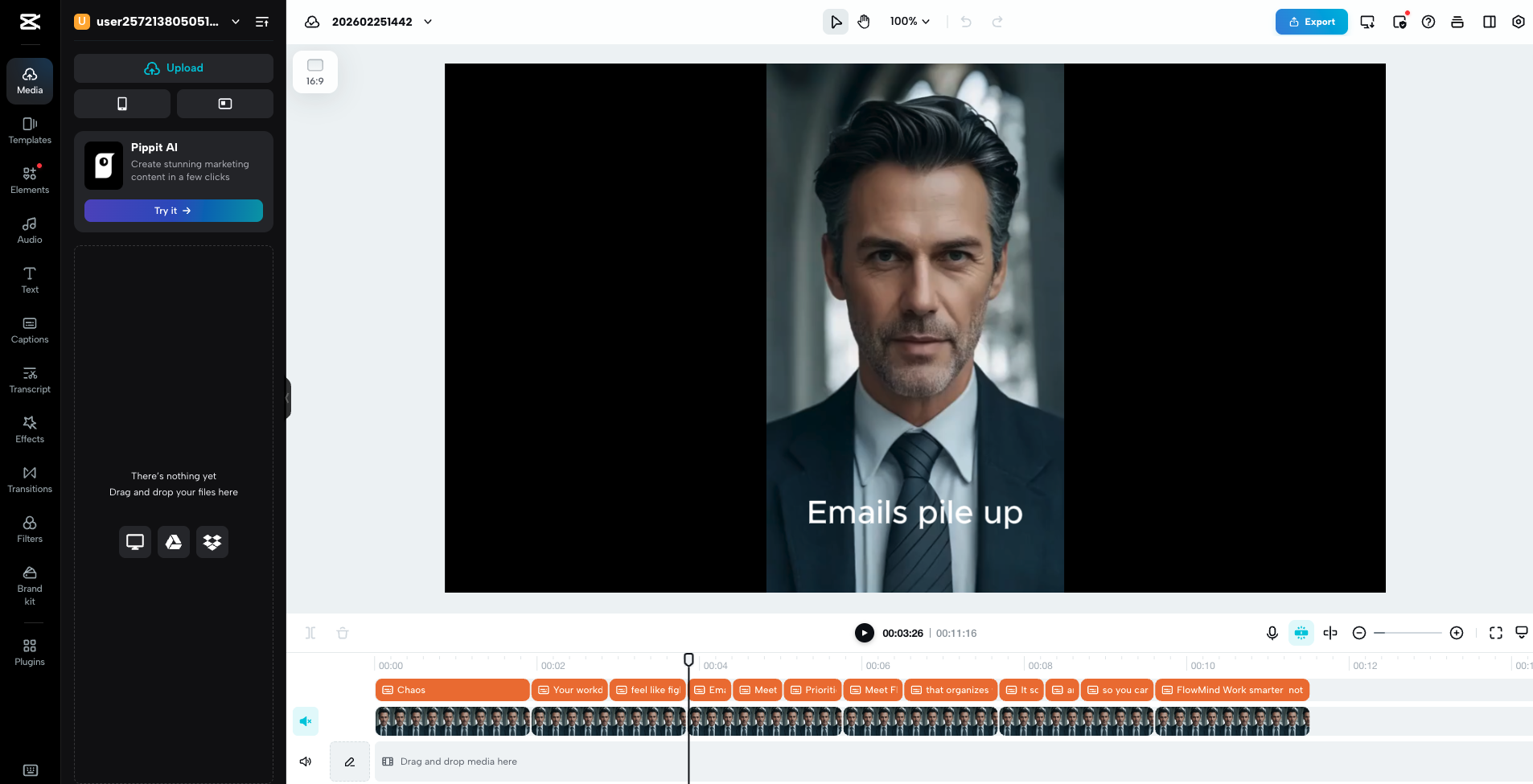
Built alongside TikTok, it removes much of the technical friction of traditional editing and replaces it with templates, automated captions, effects, and AI tools designed for short-form storytelling.
Marketing teams often choose CapCut because it delivers polished results quickly, even without editing experience, making it one of the most widely adopted tools for modern social video production.
Key Features
- Template-based editing for Reels, Shorts, and TikTok videos
- Automatic captions and text animation tools
- AI background removal and smart effects
- Built-in music, transitions, and visual effect libraries
- Mobile, desktop, and browser editing workflows
- Direct export optimized for social media platforms
- Drag-and-drop editing with a beginner-friendly interface
Pricing
- Free Plan with most editing features included
- CapCut Pro: Starting at $19.99 per month for individual users.
Pros
- Powerful free version with surprisingly advanced tools
- Extremely easy learning curve for beginners
- Designed specifically for social media content workflows
- Large library of templates, music, and effects
- Fast editing ideal for high-frequency posting
Cons
- Limited advanced editing control
- Not ideal for long-form or complex projects
- Less export and format control than professional editors
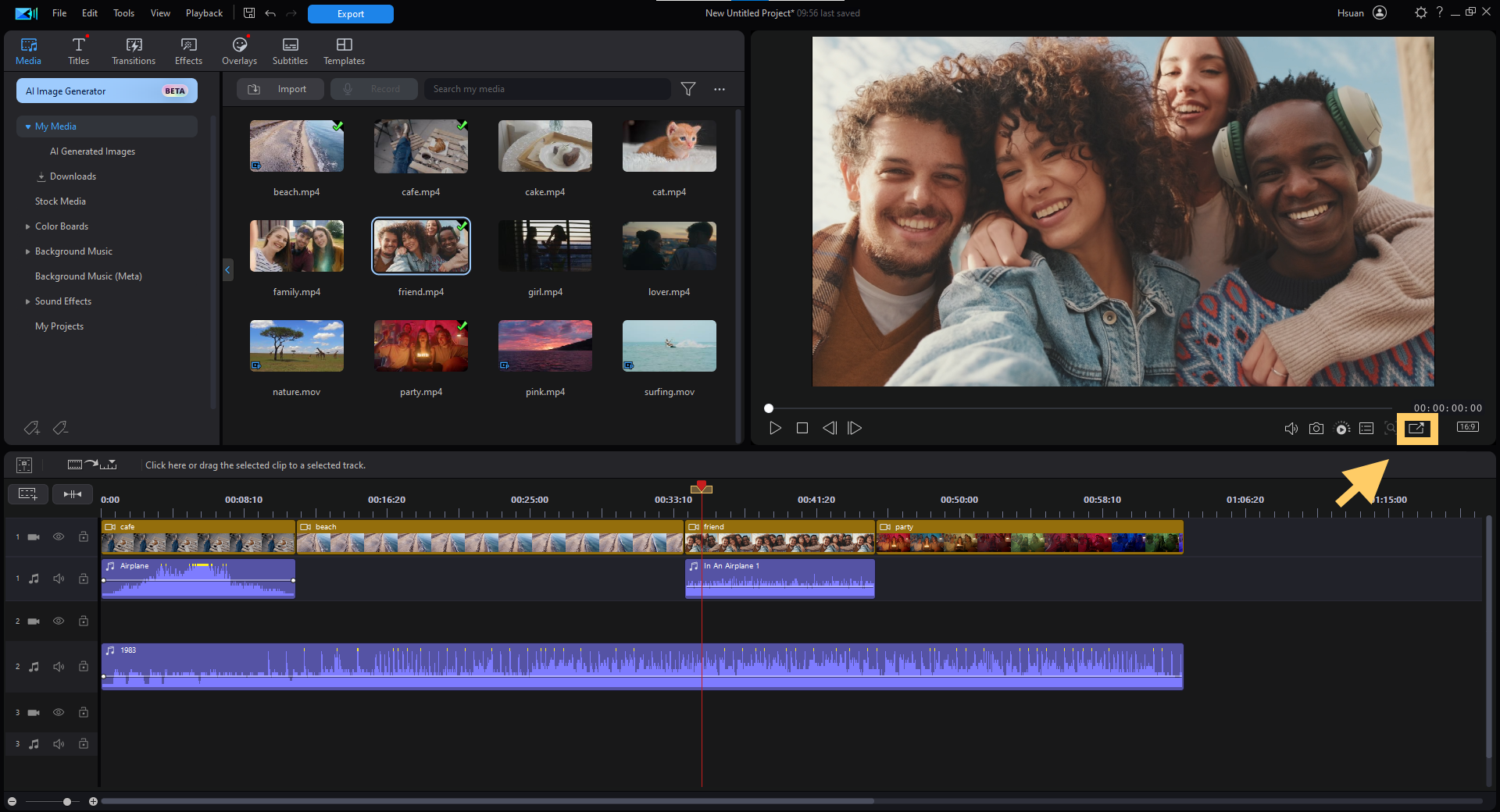
6. PowerDirector: Best for Fast Results Without Complexity
CyberLink PowerDirector sits in a unique middle ground between beginner editors and professional software.
It gives you powerful editing tools, AI automation, and a large effects library without the steep learning curve of traditional pro editors.
Instead of spending hours fine-tuning every detail, your team can assemble, refine, and export professional-looking videos quickly, which makes itespecially appealing for the ones producing content on tight timelines.
Key Features
- Multi-layer timeline editing with guided workflow tools
- AI-powered video enhancement and automation features
- Large built-in library of effects, transitions, and templates
- 4K and 8K video editing support
- Motion tracking, stabilization, and scene detection
- YouTube and marketing-ready export presets
- Cross-device editing across desktop and mobile
Pricing
- Free version available (with watermark)
- PowerDirector 365: $59.99/year
Pros
- Good balance between ease of use and editing control
- Faster learning curve than professional editors
- Large built-in effects and template library
- Smooth performance for most editing workflows
- Strong option for recurring content creation
Cons
- Performance slowdowns on large or complex projects
- Limited customization compared with professional software
- Some AI tools require additional credits
Download PowerDirector for free.
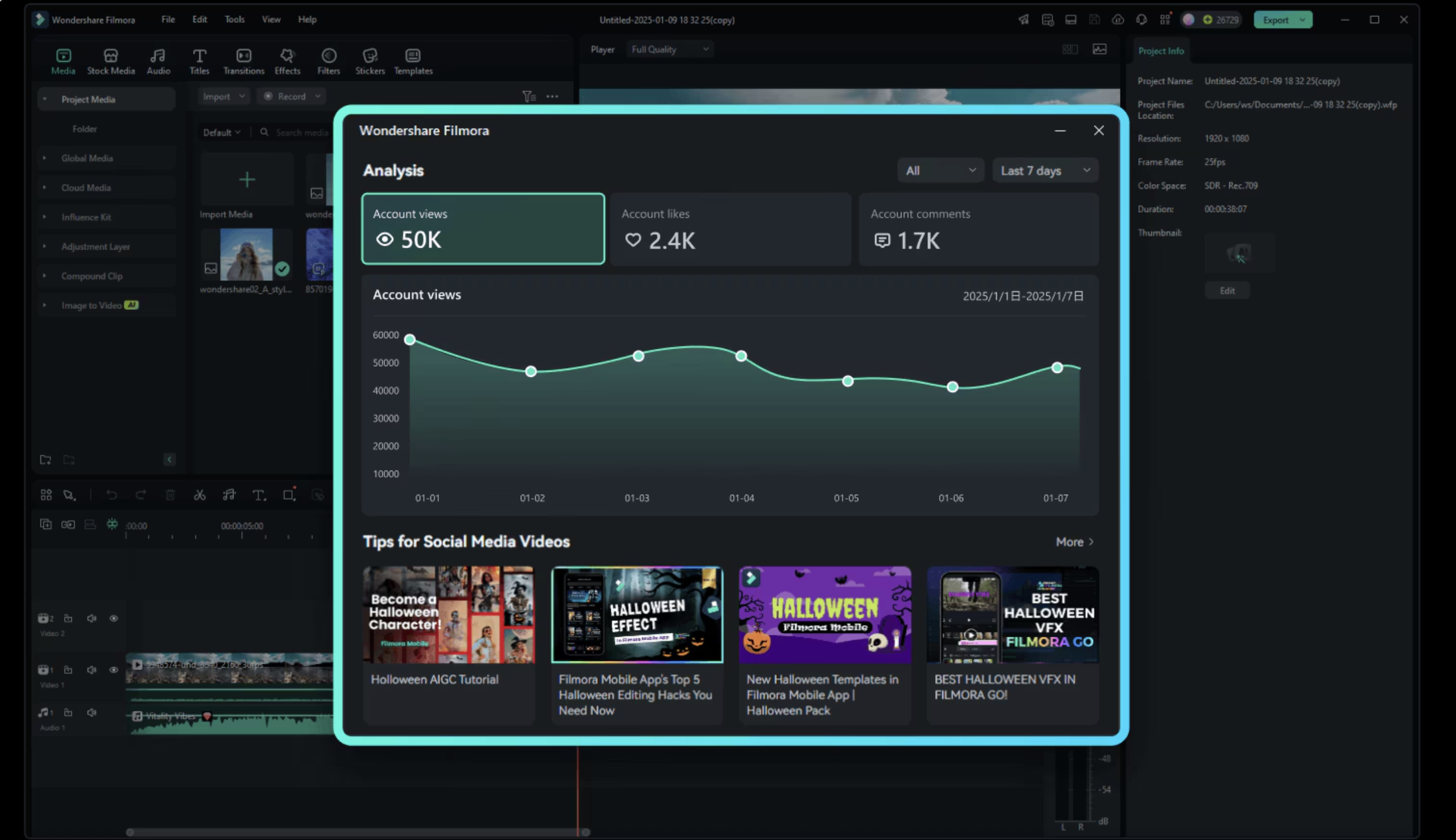
7. Filmora: Best for Template-Led Branded Content Production
Wondershare Filmora stands out as a creativity-first video editor.
Instead of starting with technical controls, it gives you ready-made visual styles, effects, titles, and motion elements that help videos look designed from the first edit.
The interface keeps editing approachable, but the real appeal comes from how quickly teams can turn basic footage into visually polished content without building graphics or animations from scratch.
Key Features
- Drag-and-drop timeline editing with a simplified interface
- Large built-in library of effects, titles, transitions, and music
- AI tools including auto captions, background removal, and smart editing
- Motion tracking, keyframing, and chroma key effects
- Ready-made templates and visual presets for fast styling
- Cross-platform editing on Windows, macOS, and mobile
Pricing
- Free version available (with watermark)
- Pricing plans start at $49.99/year
Pros
- Extremely easy interface for new editors
- Huge creative asset and effects library
- Helps beginners create polished videos quickly
- Runs well even on average computers
Cons
- Limited advanced control compared with professional editors
- Processing and export speeds can feel slow on larger projects
- Free version exports include a large watermark
- Interface customization remains limited
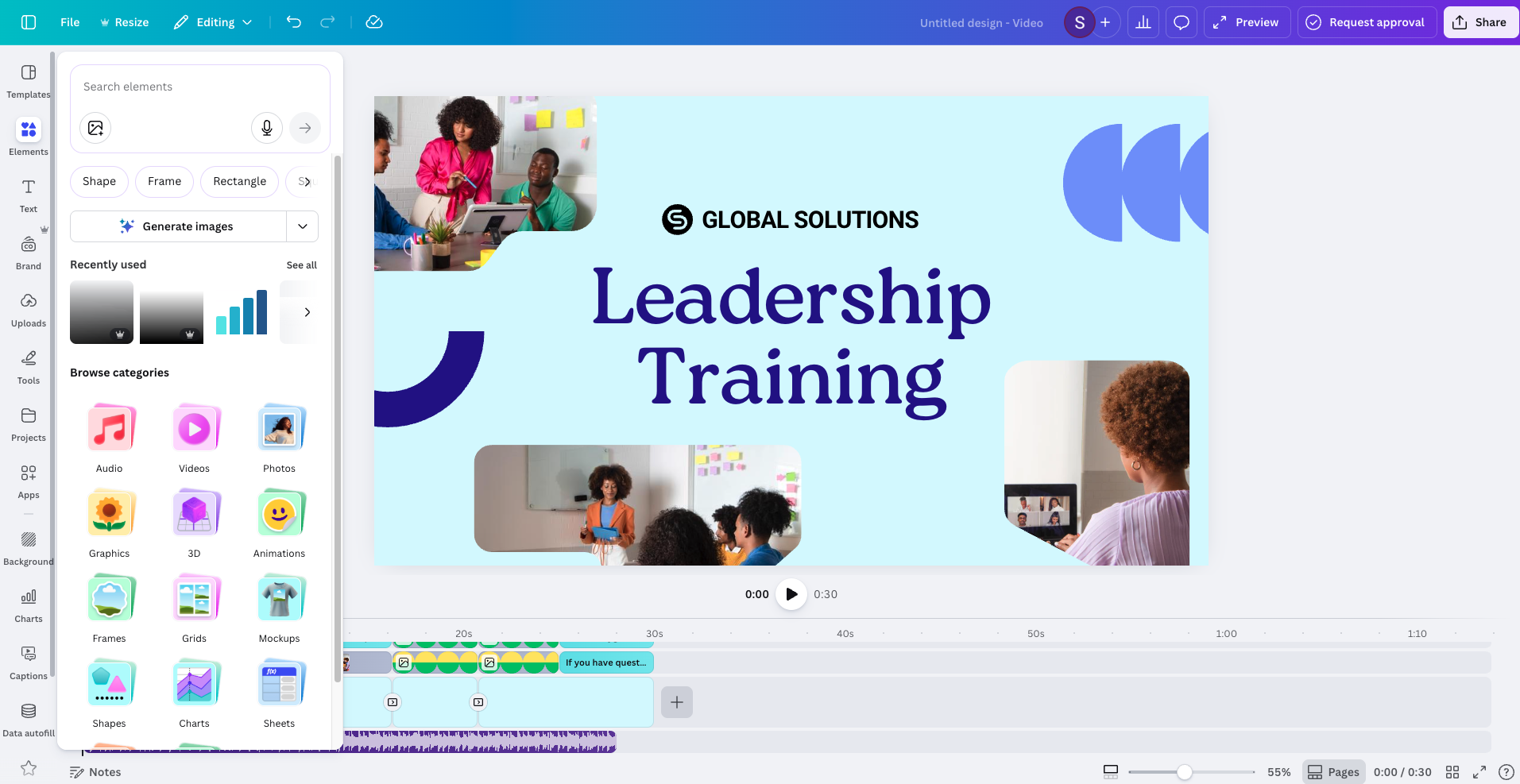
8. Canva Video Editor: Best for Brand-Consistent Marketing Content
Canva Video Editor makes video creation feel like a natural extension of everyday marketing work. You can build videos using the same templates, brand assets, and drag-and-drop tools they already use for presentations, social posts, and design projects.
Instead of learning traditional editing software, your team can assemble scenes visually, apply branding instantly, and publish content quickly, which makes Canva especially useful when video becomes part of daily campaign production
Key Features
- Drag-and-drop video editing inside Canva’s design workspace
- Large template library for ads, presentations, and social videos
- Built-in stock video, music, images, and graphics library
- Brand kits for colors, fonts, and visual consistency
- Automatic captions and simple animation tools
- Cloud collaboration with comments and shared projects
- Browser-based editing with no software installation
- Direct publishing to social platforms and presentations
Pricing
- Canva Free available with core video editing features
- Canva Pro: $120/year/user
Pros
- Extremely easy to learn with minimal training required
- Massive template and stock media ecosystem
- Strong collaboration features for teams and marketing workflows
- Enables fast production of branded content
- Works across web, desktop, and mobile without setup
Cons
- Limited advanced editing control compared to dedicated video editors
- Minimal control over export settings like bitrate or codec
- Performance may slow with larger video projects
- Many premium templates and assets require a paid plan
Start for free or check the Canva Pro Free Trial.
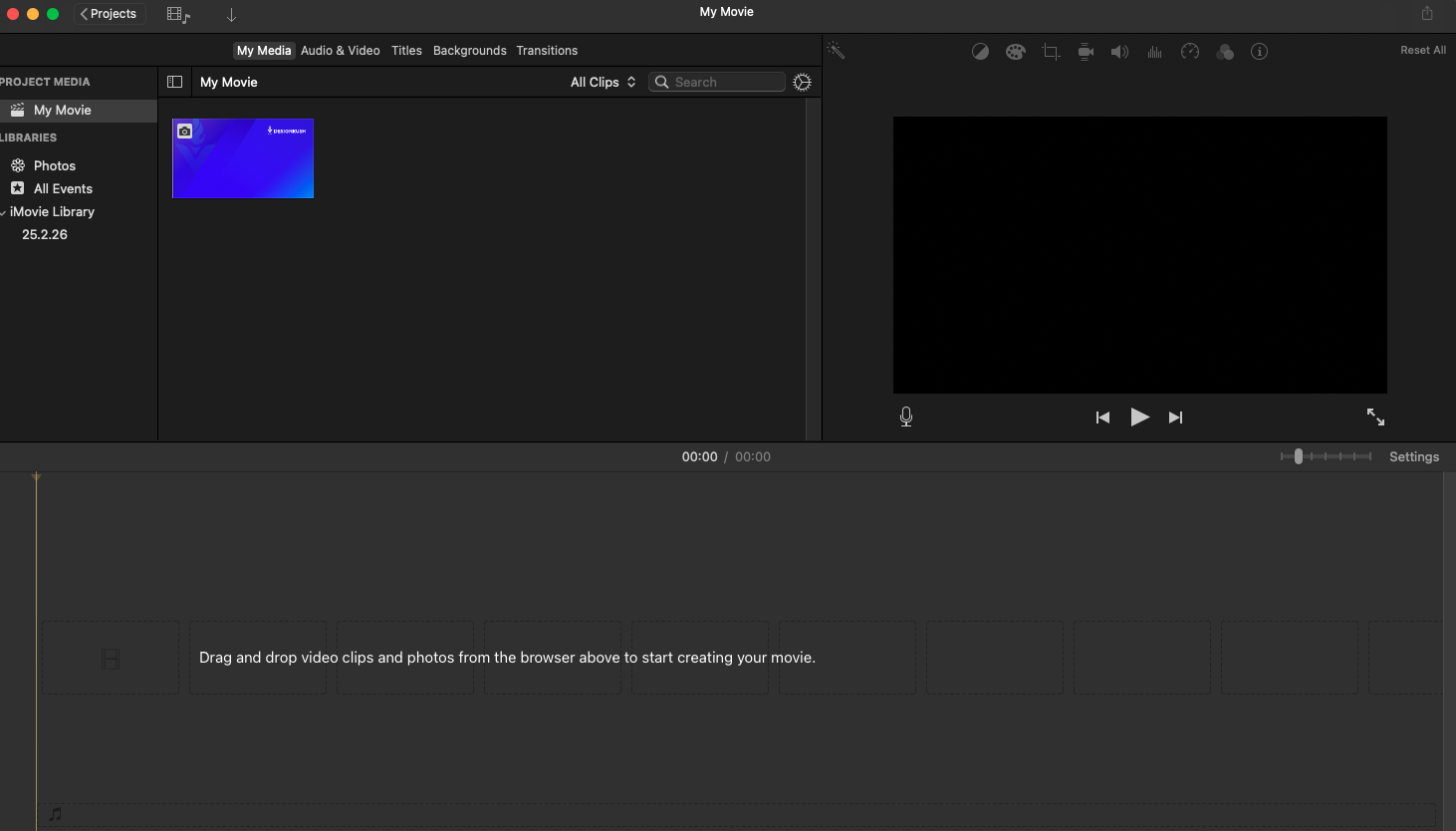
9. iMovie: Best for Quick Editing Inside the Apple Ecosystem
iMovie works because it removes almost every barrier to starting video editing. Apple designed it to feel simple from the first launch, with drag-and-drop editing, ready-made trailers, and automatic styling that helps you turn clips into finished videos quickly.
It's suitable as a first editing environment because it focuses on storytelling and basic editing decisions instead of technical setup, making video creation approachable without sacrificing quality for everyday projects.
Key Features
- Simple drag-and-drop timeline editing
- Built-in trailer templates and automatic video styles
- Basic color correction, transitions, and titles
- Video stabilization and audio editing tools
- Seamless editing across Mac, iPhone, and iPad
- Direct sharing to social platforms and Apple apps
- Integration pathway into Final Cut Pro workflows
Pricing
- Free with all Mac, iPhone, and iPad devices
Pros
- Completely free on Apple devices
- Extremely easy learning curve for beginners
- Stable performance optimized for macOS and iOS
- Enough tools for personal, school, and marketing basics
- Smooth transition into professional Apple editing tools
Cons
- Limited advanced editing controls and customization
- Mac-only software restricts cross-platform use
- Slow feature updates compared to modern editors
- Export and performance issues reported on larger projects
Start with iMovie for free on your Apple device.
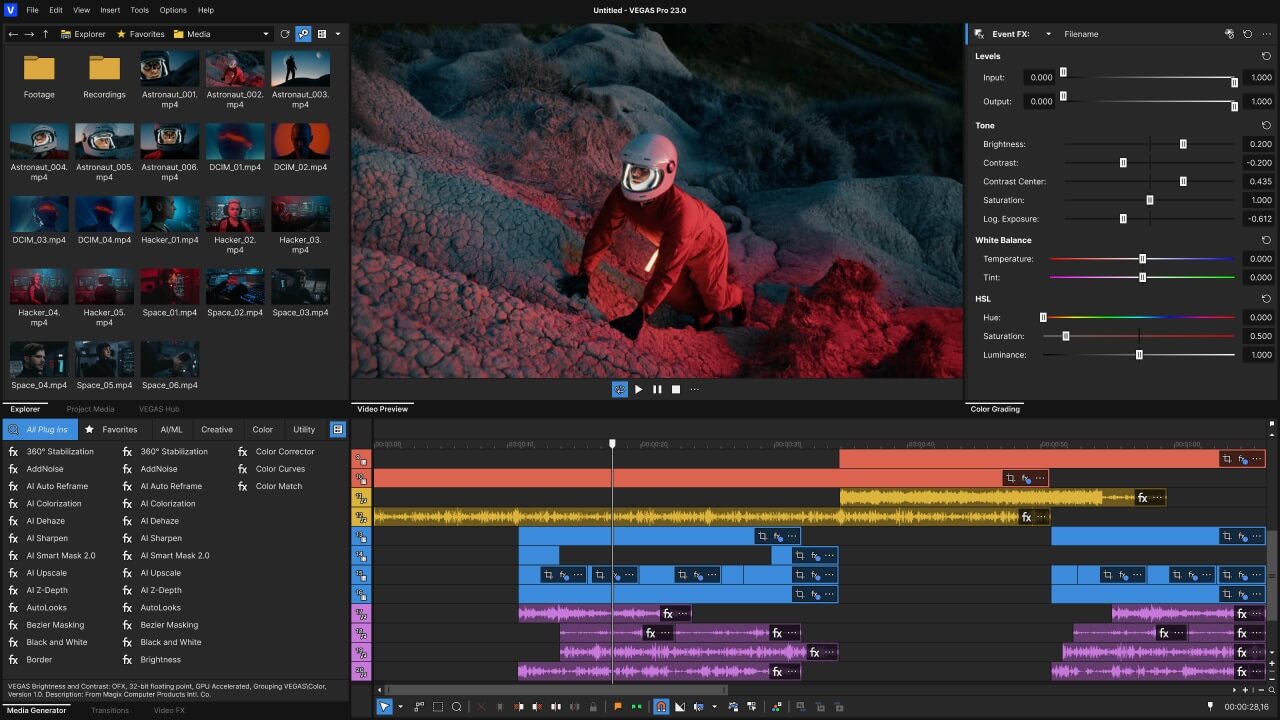
10. VEGAS Pro: Best for Hands-On Approach With Full Timeline Control
VEGAS Pro suits teams who want direct control over their workflow without navigating rigid editing systems.
Unlike many modern editors built around presets or guided workflows, VEGAS Pro centers on a flexible timeline that lets you edit quickly and experiment freely.
Strong built-in audio tools, fast rendering performance, and deep customization make it a long-time favorite among companies who prefer hands-on editing over automated production workflows.
Key Features
- Advanced audio editing and mixing built directly into the editor
- Color grading and compositing tools
- Motion tracking and multicam editing support
- GPU acceleration for faster playback and rendering
- AI-assisted editing tools and effects
- Broad format compatibility including 4K, HDR, and 360° video
Pricing
- Starting at $219.99 one-time payment
Pros
- Highly customizable editing workflow
- Fast rendering and efficient performance reported by users
- Intuitive interface once learned
- Powerful feature set suitable for both creators and professionals
Cons
- Steeper learning curve for advanced features such as keyframing
- Windows-only software limits cross-platform collaboration
- Interface can feel complex or outdated to new editors
- Smaller ecosystem compared with Adobe or Apple editing platforms
Best Video Editing Apps Compared
This comparison breaks down the top tools by use case, skill level, and strengths to help you find the right fit faster.
| App Name | Best For | Platform | Pricing |
| Descript | Marketing and podcast workflows | Web, Windows, macOS | $16/month (annual) |
| Adobe Premiere Pro | Cross-app creative workflows | Windows, macOS | $22.99 per month |
| DaVinci Resolve | Cinematic post-production | Windows, MacOS, Linux | Free |
| Final Cut Pro | Fast editing on Mac | macOS | $299.99 OTP |
| CapCut | Short-form social content | Mobile, Web, Desktop | Free version |
| PowerDirector | Fast pro results, less complexity | Windows, macOS, Mobile | Free version |
| Filmora | Template-led branded content | Windows, macOS, Mobile | Free version |
| Canva Video Editor | Brand-consistent team content | Web, Mobile | Free version |
| iMovie | Simple editing on Mac | Apple ecosystem | Free on Apple devices |
| VEGAS Pro | Hands-on timeline control | Windows | $219.99 OTP |

Our team ranks agencies worldwide to help you find a qualified partner. Visit our Agency Directory for the top video production companies, as well as:
- Top Video Marketing Agencies
- Top Audio Production Companies
- Top Creative Agencies
- Top Graphic Design Companies
- Best Video Editing Companies in Chicago
Video Editing App FAQs
1. What is the best video editing app for beginners?
The best option for beginners is one that offers an intuitive interface, drag-and-drop editing, and built-in templates. A simple learning curve matters more than advanced features when you’re just getting started.
2. Are free video editing apps good enough for professional use?
Some free video editing apps provide powerful features and high-quality exports. However, paid versions often include better collaboration tools, expanded asset libraries, and more export control, which can matter for business or commercial projects.
3. What features should I look for in a video editing app?
Key features include smooth playback performance, reliable export options, flexible timeline editing, caption support, and time-saving tools such as templates or automation. The right features depend on the type of videos you produce.
4. How important is hardware compatibility when choosing a video editor?
Hardware compatibility is critical. Even the best editing app will struggle if your device cannot handle rendering and playback smoothly. Always check system requirements before committing.
5. Is it better to choose a subscription or a one-time purchase video editor?
Subscriptions often include ongoing updates and cloud features, while one-time purchases offer long-term cost predictability. The better option depends on how frequently you edit and whether you need continuous feature upgrades.